Your collection page filtering can be customized from the Shopify Search and Discovery app. Using this app you can add new filters and customize how they appear on your theme.
Shopify has recently made a number of improvements to metafields and how they work with swatches. This is great news for us because now swatches are much easier to manage and update.
Add swatch filter from metafield
Add swatch filter from metafield
Go to Settings > Custom Data
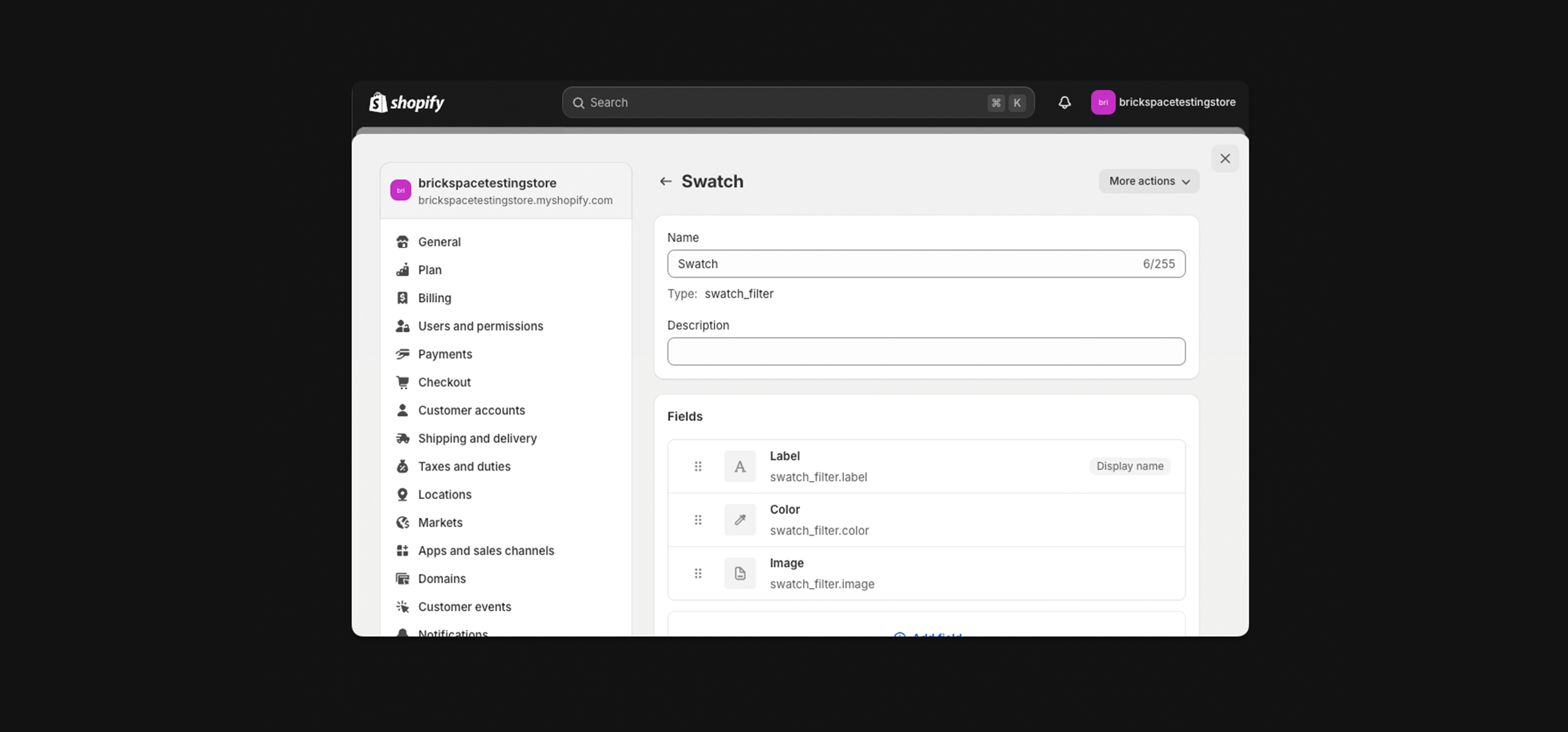
Scroll down to Metaobject definitions then click Add definition
Add a name and description to your metaobject
You can use any name or description. E.g. "Swatch"
Add three fields to your metaobject
Label, color and image.
Label should be a required field using "Single line text" - Make sure to select "List of values" after clicking single line text.
Color is not required and uses "Color".
Image is not required and uses "File" with "Accepts specific file types - Images" selected.
Create metafield to link to metaobject
We now have to assign values so data is populated for our new metafields.
Go to Settings > Customdata
Click Product
Select Add definition
Add a name and description to your new metafield.
You can use any name or description. E.g. "Swatch"
Click Select type then pick Metaobject
Choose List of values
In the reference field enter the Metaobject you have just created
Assign values to each product
Hit Save
Link metafields to products
Find a product you want to update
Scroll down to Product metafields
Add the colors you'd like to highlight for this product
Click Select source, then look for the new product metafield you just created
Add a label
You can use any name or description. E.g. "Color" or "Material"
Click Save
Add swatch filter from 'Color' option
You can add filters using color product options. This is a easy way to add filters but will require swatch files to be uploaded in a specific format. Swatches will only appear using this approach when the product option matches "color" - or a translation of color.
Click Select source then look for the product option Color
This is the same approach you would take if you wanted to filter by any other product option like size.
Add a label
You can use any name or description. E.g. "Color"
Hit Save
Caveats of metafield filtering
If you use metafield swatch filtering you'll have to ensure you update your metafields for all products that you want to appear on this filter - this will NOT happen automatically even if category metafields and variant options are displaying swatches.
A temporary fix for adjusting color swatch sizing
Go to Online Store > Theme settings > Custom css
Within your custom css block paste the following code:
For color swatches/custom swatches (adjust the REM within height and width in increments of .1 for the best results) :
text
1
2
3
4
.btn.btn--plain {
  height: 2.2rem;
  width: 2.2rem;
}
Upload missing swatch files
You may notice that not all of your color filters are appearing with swatches. If this is the case you may have to upload custom swatch files.
Swatches will only appear automatically if the color name matches a default CSS color.
Identify all swatches that are missing
Upload a 64x64 jpg file for each swatch you want to replace.
Swatches must be named all lowercase and prepended with “swatch-”. For example, if your color variant is “Electric blue” you would name your file “swatch-electric-blue.jpg
SpaceVariant filtering
How do I get started with my workspace?
Start by connecting your source repository and choosing the pages you want to publish.
You can then browse your documentation and ask questions about the content your team has shared.