> For the complete documentation index, see [llms.txt](https://help.brickspacelab.com/llms.txt). Markdown versions of documentation pages are available by appending `.md` to page URLs; this page is available as [Markdown](https://help.brickspacelab.com/pallet/getting-started/installing-the-pallet-app.md).
# Install Pallet
This guide will walk you through installing and setting up Pallet on your Shopify store. The entire process takes about 5-10 minutes.
### What You'll Need
* A Shopify store (any plan)
* Store owner or staff account with app installation permissions
* Customers tagged in your Shopify admin (or you can add tags after installation)
{% stepper %}
{% step %}
#### Install the Pallet App
1. Visit the [Pallet app listing on the Shopify App Store](https://apps.shopify.com/)
2. Click **Add app**
3. Review the permissions Pallet needs:
* Read and write customers (to check customer tags)
* Read and write discounts (to apply pricing rules)
* Read products (to display correct prices)
4. Click **Install app**
You'll be redirected to the Pallet app within your Shopify admin.
{% endstep %}
{% step %}
#### Select Your Subscription Plan
After installation, you'll see the plan selection page.
1. Review the Basic and Unlimited plans
2. Choose the plan that fits your needs:
* **Basic ($19/month)**: Up to 3 pricing rules
* **Unlimited ($29/month)**: Unlimited pricing rules
3. Click **Start Basic trial** or **Go Unlimited**
4. Confirm the subscription
Your 14-day free trial starts immediately. You won't be charged until the trial ends.
{% endstep %}
{% step %}
#### Enable the Theme App Embed
This is the most important step - it enables Pallet to display custom prices on your storefront.
1. From the Pallet app, you'll see a **Setup Guide** with a button to open the theme editor
* Or manually navigate to: **Online Store → Themes → Customize**
2. In the theme editor, click the **App embeds** section (usually in the left sidebar near the bottom)
3. Find **Pallet Pricing** or **price-adjuster** in the list
4. Toggle it **ON**
5. Click **Save** in the top right corner
{% hint style="info" %}
**Important:** Without enabling the app embed, your pricing rules won't display on the storefront.
{% endhint %}
{% endstep %}
{% step %}
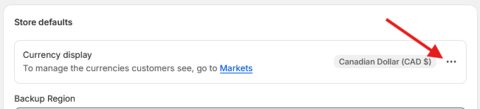
#### Update your currency settings
1. In Shopify admin, go to **Settings**
2. Then select **Change currency formatting**
3. Wrap the currency in a span with a data-pallet-price attribute. Do this for both HTML with currency and HTML without currency.
For example:
Before
```
${{amount}} CAD
```
{% endstep %}
{% step %}
After
```
${{amount}} CAD
```
#### Verify Installation
**Create a Test Customer**
1. In Shopify admin, go to **Customers**
2. Click **Add customer**
3. Enter test customer details
4. In the **Tags** field, add a tag like `wholesale` or `test-discount`
5. Save the customer
**Create a Test Pricing Rule**
1. Open the Pallet app from your Shopify admin
2. Click **Create rule**
3. Enter the customer tag (e.g., `wholesale`)
4. Set a discount percentage (e.g., `15`)
5. Make sure **Status** is set to **Active**
6. Click **Create rule**
**Test on Your Storefront**
1. Open your storefront in an incognito/private browser window
2. Log in as the test customer you created
3. Browse to any product page
4. You should see the discounted price displayed
**What you should see:**
* Product pages show the discounted price
* Collection pages show the discounted price
* Search results show the discounted price
* Cart and checkout show the discount applied
{% endstep %}
{% endstepper %}
### Post-Installation Setup
Now that Pallet is installed, you're ready to:
1. **Tag your customers** - Add tags to your existing B2B/wholesale customers in Shopify admin
2. **Create rules** - Set up rules for each customer segment
3. **Test thoroughly** - Log in as different customer types and verify pricing displays correctly
Will this work with my theme?
Yes! Pallet is designed to work with all Shopify themes. The app embed integrates seamlessly without modifying your theme code.
What if I switch themes?
If you switch themes, you'll need to enable the Pallet app embed in your new theme. Just follow Step 3 again with your new theme.
Can I use Pallet with other discount apps?
Pallet uses Shopify's native discount functions, which follow Shopify's standard discount stacking rules. Generally, only one discount applies at checkout (whichever is greater), but multiple discounts may be combined depending on your Shopify plan and settings.
Will guest customers see discounted prices?
No. Pallet only displays discounted prices to logged-in customers with matching tags. Guest customers will see regular prices.
Do discounts apply to all sales channels?
Yes! Pallet's discounts work on your online store, and Shopify's discount functions apply the discounts at checkout across all sales channels.
---
# Agent Instructions
This documentation is published with GitBook. GitBook is the documentation platform designed so that both humans and AI agents can read, navigate, and reason over technical content effectively. Learn more at gitbook.com.
## Querying This Documentation
If you need additional information that is not directly available in this page, you can query the documentation by asking a question.
Perform an HTTP GET request on the following URL with the `ask` and `goal` query parameters:
```
GET https://help.brickspacelab.com/pallet/getting-started/installing-the-pallet-app.md?ask=&goal=
```
`ask` is the immediate question: it should be specific, self-contained, and written in natural language.
`goal` is what the user is ultimately trying to achieve, the reason they need the answer. Sharing it helps GitBook give you a better, more relevant answer. A goal is most helpful when it describes the outcome the user wants rather than restating the question. For example, with `ask=how do I create an API token`, a goal like `automate deployments from our CI pipeline` lets GitBook tailor the answer to that use case.
The response will contain a direct answer to the question and relevant excerpts and sources from the documentation.
Use this mechanism when the answer is not explicitly present in the current page, you need clarification or additional context, or you want to retrieve related documentation sections.